Run parallel AI coding agents in Ubuntu projects from Orbit on Windows
Ubuntu 22.04 and 24.04 projects run through the Orbit Linux helper under WSL2, with the Orbit window on Windows. Orbit is not a native Linux desktop app. Keep your project and coding agents inside Ubuntu while managing their queue and results from Windows.
The helper runs project files, commands, coding agents, dev servers and builds inside Ubuntu. The supported helper package targets Ubuntu 22.04 and 24.04 (x64). The Orbit desktop app runs on Windows 10 or later; this setup does not provide a desktop download for other Linux distributions.
Orbit is free during alpha. The invite code is emailed right away when you sign up. Your coding agent access and usage costs are separate.
Platform requirements: Windows 10 or later; Apple Silicon Macs (M1 or later); Ubuntu 22.04 and 24.04 projects through the Orbit Linux helper, with the Orbit window on Windows.
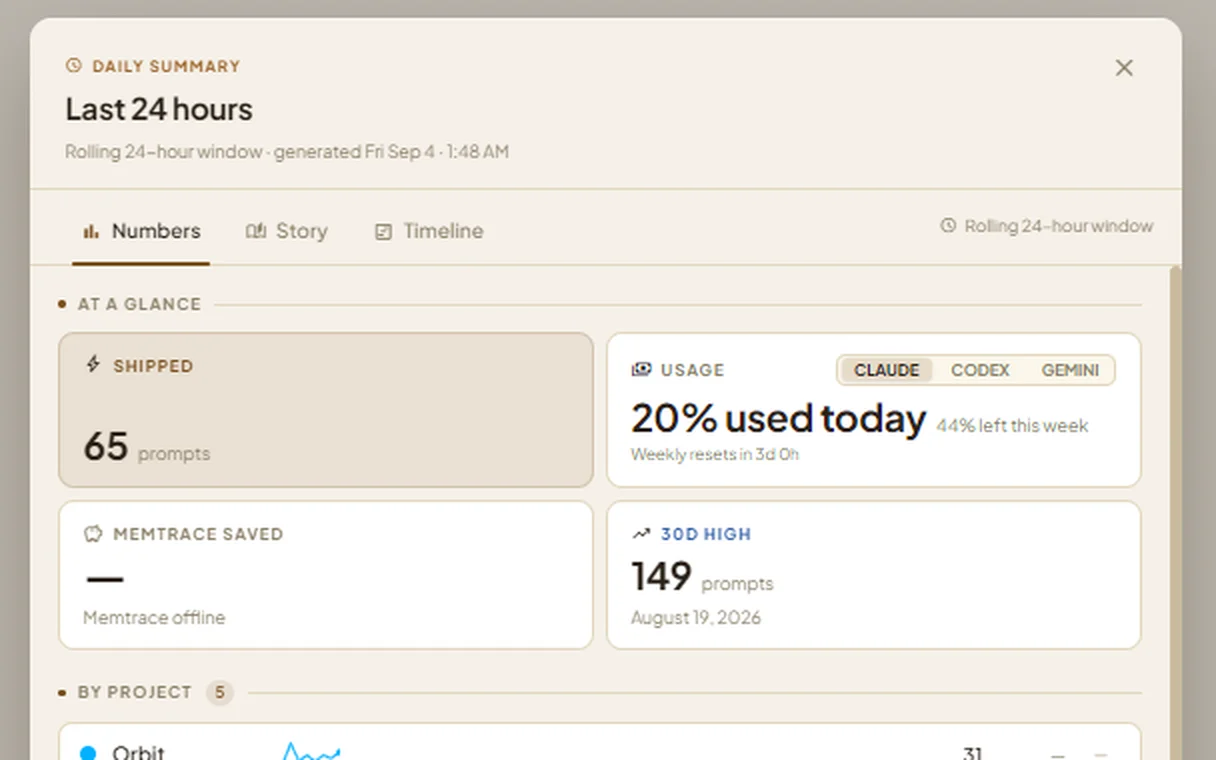
Orbit's Daily Summary brings shipped work and agent usage into one view. Existing product screenshot; the figures shown are illustrative.
Get started on Ubuntu / Linux
Install Orbit on Windows using /install.
Install WSL2 with Ubuntu 22.04 or 24.04 if needed. The installation guide provides the Windows terminal command and restart instructions.
Open Setup Checklist → Set up a Linux project. Follow the WSL2, helper and Linux-local coding agent checks.
Clone or create the project inside Ubuntu, for example /home/you/projects/my-app. In Project Settings, choose Run this project in Linux and confirm the target.
No. Ubuntu 22.04 and 24.04 projects run through the Orbit Linux helper under WSL2, with the Orbit window on Windows.
Where should my Ubuntu project live?
Create or clone the project inside Ubuntu, such as /home/you/projects/my-app. Orbit does not move or sync a Windows-side project into Ubuntu for you.
Where do I install the coding agents?
Install and authenticate the coding agent CLIs inside Ubuntu. The Linux project setup guide checks each Linux-local agent before you route the project.